Controls for Clean The Ballpit
Move, look, pick, and shop without fighting the camera.
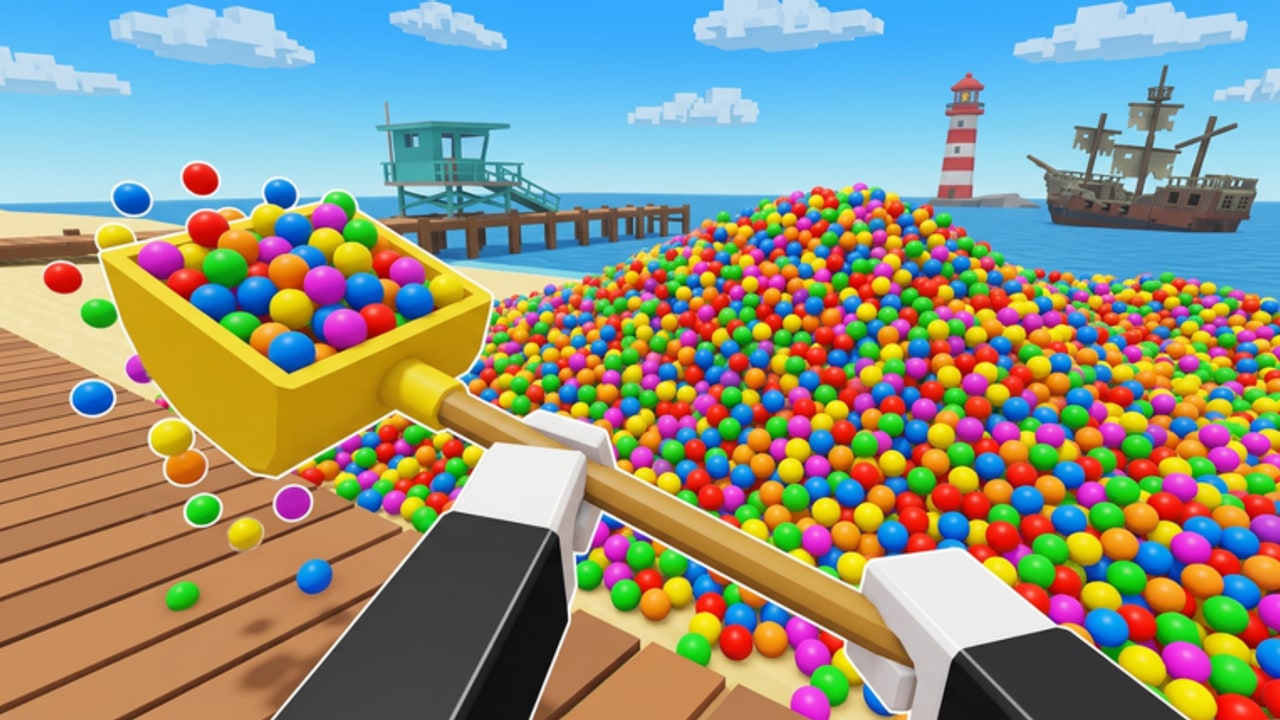
Clean The Ballpit! uses familiar Roblox movement with a cleaning-focused interaction layer: you aim your avatar at colorful plastic balls, pick them up, deposit or organize them, and weave through themed maps while opening shops for tools and pets. This controls guide covers practical PC and mobile assumptions for click-to-pick cleaners, camera habits that keep piles in view, drop and inventory instincts, shop and upgrade UI navigation, and settings that make long sessions comfortable. Pair it with the Getting Started guide if you have not finished your first hour yet.
Core loop on any device
Regardless of platform, the loop is the same. Move into a messy room, keep the densest ball cluster centered on screen, interact to pick, then either continue the chain or open the upgrade UI when you can afford a meaningful boost. Pets and advanced sweep systems eventually automate pieces of that loop, but your hands and camera still decide whether you waste seconds spinning in place. Treat controls as part of your build—just as important as the tool tier you equip from the Tools and Pets guide.
PC controls
On keyboard and mouse, expect the standard Roblox layout:
- W A S D — move forward, left, back, and right.
- Space — jump over low obstacles, stairs, or decorative props that block a straight path to a pile.
- Mouse look — hold the right mouse button or use the locked camera mode you prefer to pan across a room.
- Left click — primary interact for picking balls and pressing UI buttons.
- E or on-screen prompts — some Roblox cleaners also bind a proximity key; watch for contextual prompts near deposit points, shops, or special clean stations.
- Esc / Roblox menu — leave, adjust volume, or open settings without abandoning the experience mid-purchase.
Shift-lock can help when you want the camera glued behind your avatar for hallway runs, but free camera often works better when you are vacuuming a wide living room or fairground path. Toggle based on the map: tight museum corridors favor locked facing, while open boardwalks favor free look so you can spot side piles early.
PC picking and camera tips
Stand slightly above or beside a pile rather than burying your camera inside it. Clicking through a wall of balls is easier when you can see edges. Strafe along a row instead of constantly turning in place; strafing keeps your mouse free for fine aim. If balls sit under furniture, crouch if the experience supports it, or approach from the side with the camera lowered. Dropping accidental picks—if the game allows a drop or cancel—should be bound muscle memory so you do not carry the wrong stack into a deposit point.
When the shop opens as a full-screen or large panel, finish your current pick animation before you click buy. Accidental double-clicks on the wrong upgrade waste currency that should have gone into reach or speed. After purchasing, close the panel completely and confirm the new tool is equipped before you sprint back into a speedrun route.
Mobile controls
On touch devices you will use the virtual joystick on the left and a jump button on the right, with taps for interaction. Clean The Ballpit sessions on phones succeed when you:
- Enlarge usable UI in Roblox settings if buttons feel tiny.
- Keep your thumbs from covering the densest ball clusters—tilt the camera up slightly so piles sit in the upper half of the screen.
- Tap once firmly to pick; frantic multi-taps can miss proximity targets or open the wrong menu.
- Pause movement when opening the shop so the joystick does not drift you into a wall while you browse pets.
Landscape orientation usually gives a better view of fairground aisles and cruise decks. If your device overheats, lower graphics quality so frame rate stays high enough that taps register on the ball you meant to hit.
Shop, upgrades, and settings UI
The shop and upgrade panels are where incremental power lives. Learn a consistent path: open shop → tools tab → affordable speed or reach upgrade → confirm → equip → close. Then visit pets only after your hands feel faster. Sweep and organize unlocks come later in the progression described on Tools and Pets. Memorizing that order prevents shopping paralysis in the middle of a co-op clear.
Roblox settings worth checking before a long grind:
- Graphics quality — lower if frame rate stutters when hundreds of balls render.
- UI volume and music — keep feedback sounds audible so pick confirmations are clear.
- Camera sensitivity — raise slightly on PC if turning across a museum gallery feels sluggish; lower on mobile if aim overshoots.
- Performance stats (optional) — use temporarily to see whether lag is network or device bound.
Co-op control etiquette
With up to six players, camera fights and doorway traffic matter as much as keybinds. Call out when you open a large shop UI so teammates are not waiting on you in a choke point. Avoid standing directly on the pile another cleaner is targeting; give them a clear click or tap target. On mobile, announce if you need a moment to adjust touch controls after joining mid-session.
Private servers are ideal for practicing clean routes without random avatars blocking camera sightlines. Public servers are fine for casual clears—just expect to adjust paths when someone plants themselves in a doorway.
Map-aware movement habits
Controls feel different on each themed map covered in the Maps Walkthrough. The House teaches furniture ducking and room-to-room strafing. BloxMart adds aisle discipline—walk the length of a shelf row instead of weaving randomly. The Fun Fair introduces wider outdoor sightlines where free camera pays off. The Beach Boardwalk rewards looking past railings for side piles. Bloxton Museum asks for careful turns so you do not clip displays. The Starlight Cruise mixes long decks with interior cabins, so practice switching between locked and free camera mid-run.
Build a short warm-up every session: thirty seconds of strafing along a straight wall while picking, then a full 360 camera sweep of the room. That warm-up surfaces sensitivity problems before you care about leaderboard times.
Accessibility and comfort
Take breaks during multi-map grind nights. Incremental cleaners invite long sessions, and hand fatigue makes click accuracy drop. Remap nothing exotic until you are comfortable with defaults; exotic keybinds confuse co-op callouts. If you play seated with a controller through Roblox’s supported input paths, treat the right stick like a mouse look and the face buttons like click/confirm—then re-test shop navigation because UI focus can differ from mouse play.
Quick reference checklist
- Confirm move, jump, look, and pick before you buy anything.
- Prefer strafing along piles over spinning in place.
- Open shop only between clear bursts; equip upgrades immediately.
- Tune sensitivity and graphics so picks feel responsive.
- Practice camera switches when you rotate maps.
- Re-read Getting Started if the early economy still feels opaque, then return here to polish execution.
Mastering controls will not replace better tools, but bad camera habits will waste every upgrade you buy. Spend one focused session making movement boringly reliable, then invest currency into the loadouts ranked on the tier lists and detailed in Tools and Pets. Clean maps are won by steady hands as much as shiny gear.
Frequently Asked Questions
Quick answers for Clean The Ballpit players.
What are the basic PC controls?
Use WASD to move, Space to jump, mouse to look, and left click to pick balls and use the shop UI. Adjust shift-lock based on whether the room is tight or open.
How do I play Clean The Ballpit on mobile?
Use the virtual joystick and jump button, tap to pick, and prefer landscape view. Pause movement before opening the shop so the stick does not drift your avatar.
Why does picking feel inconsistent?
Usually camera angle or frame rate. Stand beside piles, keep them visible, lower graphics if needed, and avoid burying the camera inside a ball stack.
Should I change Roblox settings?
Yes. Tune graphics quality, camera sensitivity, and audio so pick feedback stays clear during dense scenes with many balls on screen.